
 Download App
How to share a Zoom recording from the cloud
Cloud recording is a paid Zoom feature. Zoom lists a Pro, Business, Education or Enterprise account as a prerequisite, and cloud recording sharing has to be turned on. On the free Basic plan you record to your own computer and share the file some other way.
The recording also needs to finish processing before it shows up in the web portal. Give it some time after a long session.
Open your cloud recordings
Sign in to the Zoom web portal, go to Recordings & Transcripts and open the Cloud recordings tab. Admins find everyone's recordings under Account Management, then Recording and Transcript Management.
Open the recording and click Share
Click the recording's thumbnail to open it, then click Share.
Choose who can view
Pick Everyone with the recording link for a public link, or limit it to signed-in users, specific domains, or only the people you add by name or email.
Set the extra options
Under More settings you can set an expiration date, allow or block downloads, show the transcript, require viewers to register, and set a passcode.
Copy and send
Click Save, then Copy link and passcode, and paste it where your members will see it.
Sharing a Zoom recording without the passcode
Two options exist. In the Share settings you can switch the passcode off for that recording. Or turn on Embed passcode in the shareable link for one-click access in your recording settings, and the link opens without anyone typing the code.
With the passcode embedded, the link itself is the key. Anyone who receives a forwarded copy gets in with one click, so treat it like a password.
Getting a Zoom recording transcript
Zoom can create an audio transcript for cloud recordings when audio transcription is enabled on a paid plan. It only works for cloud recordings, not files saved to your computer. In the Share settings, Viewers can see transcript shows it to people with the link.
Where Google Meet saves recordings, and how to share them
A Google Meet recording is saved to the meeting organizer's Google Drive, in a Google Meet folder with a sub-folder for each meeting. Since July 2026 the older "Meet Recordings" folder is renamed "Legacy Meet Recordings" and moved inside it. Old links keep working.
Recording is available on most paid Google Workspace plans and on Google One plans with 2 TB or more, and a Workspace admin has to allow it. Check Google's page for the exact list of plans.
Start the recording
In the meeting on a computer, open Meeting tools, choose Recording, then Start recording.
Wait for the file
The organizer and the person who started the recording get an email with the link, and the link is added to the Calendar event. Drive shows "Still processing" until the file is ready.
Open sharing in Drive
Select the file in Drive and click Share. Under General access, choose Restricted (only people you add), your organization, or Anyone with the link.
Pick a role and copy the link
Viewer is the right role for a recording. Click Copy link, then Done.
Limit downloads if you need to
In the Share dialog, open Settings and clear the boxes for who can download, copy and print.
Recordings count against the organizer's Drive storage and the organization's quota. If either is full, Meet can't record at all, so check storage before a big session.
For a transcript, Google Meet has a separate Transcribe option under Meeting tools on supported Workspace plans. The transcript is saved to the organizer's Drive in the same Google Meet folder and attached to the Calendar event.
What goes wrong when you share meeting recordings with a whole community
The steps above work well for sending one recording to a few colleagues. A community that records every week runs into different problems.
Storage fills up
Zoom cloud storage and Google Drive quotas are finite. Meet won't record when the Drive is full.
Recordings get deleted
Zoom admins can set cloud recordings to auto-delete after a number of days. Deleted files sit in the trash for 30 days, then they're gone for good.
Links belong to one person
The file lives in the host's account. When that person leaves, changes plan, or cleans up, every link in the chat breaks.
Public by accident
"Anyone with the link" means anyone on the internet. One forwarded message and your paid session is public.
Nobody finds week 12
Links posted in the chat sink within days. By the third month, finding a session means scrolling or asking.
A recording link is a delivery method. It was never meant to be an archive.
A better routine: from recording to a session page
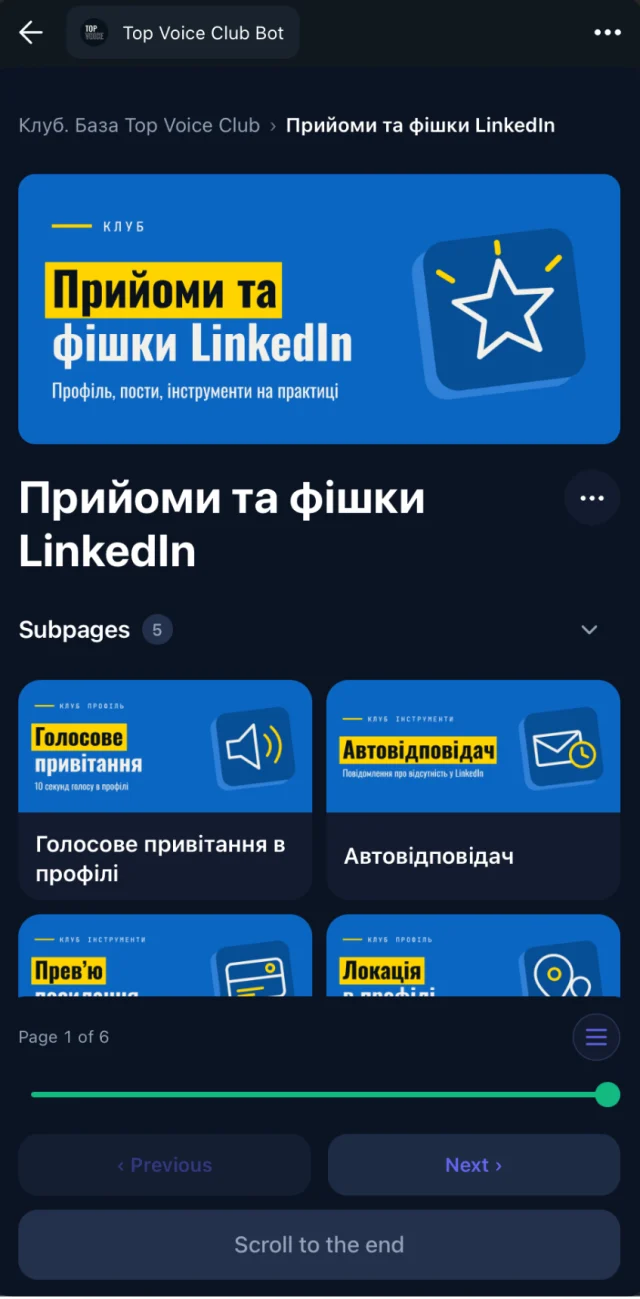
Treat Zoom and Meet as the place you record, and give each session a permanent home somewhere your members already go. Here's how that works with Embedify, a knowledge base that opens inside Telegram.
Embedify doesn't record or host video. It embeds YouTube and Vimeo videos on a page and adds a transcript and an AI summary, next to the slides and notes.
Sharing links
- File tied to the host's Zoom or Drive account
- Link posted once, then buried in the chat
- Access is whoever has the link
- Search covers message text, not the call
Session pages
- Video on YouTube or Vimeo you control
- One page per session in a space
- Access follows your Telegram group
- Search covers every word in the transcripts
The 5-step weekly routine admins can copy
About 10 minutes, the morning after each session.
- Download the recording from the Zoom web portal or from the Google Meet folder in Drive.
- Upload it to YouTube as unlisted, or to Vimeo with private settings. Unlisted videos don't show up in YouTube search, but anyone with the link can watch.
- Create a session page in Embedify in the right space (for example "Weekly calls 2026"), titled topic, speaker, date, and paste the video link.
- Add the deck and notes. Google Slides, PPTX or PDF go on the page. Session notes in Google Docs stay in sync. The transcript and AI summary appear with the video.
- Post one message in the chat saying the session is up. Members open the library from Telegram, and the page will still be there in six months.
Tuesday's session is in the library.

Topic: [topic]
Speaker: [name]

2-minute summary, slides and the full recording are on the page.
Open the library from the button below and search "[keyword]".
Privacy settings to check before you share
- Zoom: avoid "Everyone with the recording link" for paid sessions, or at least set a passcode and an expiration date. Switch off Viewers can download if the file shouldn't leave.
- Google Drive: keep General access on Restricted or your organization unless the session is meant to be public. "Anyone with the link" needs no Google sign-in.
- YouTube: unlisted hides the video from search but not from anyone holding the link. Private videos can only be seen by you and the people you choose.
- Embedify: put member-only sessions in a space with an access group. People who leave your Telegram group lose access automatically.
- Consent: tell guests and attendees the session is recorded and where the recording will go.
Speaker pages and meeting summaries are on the Embedify Pro plan, so see pricing. The Free plan is $0 with no time limit, and your own branded bot starts from $29/month on Basic.
For the bigger picture of how to organise a full archive, read the webinar recording library guide, and see how on-demand webinars turn replays into membership value.
Sources
- Zoom Support: Sharing a cloud recording
- Zoom Support: Enabling cloud recording
- Zoom Support: Managing cloud recording settings
- Zoom Support: Embedding passcode in shareable links
- Zoom Support: Deleting computer or cloud recordings
- Zoom Support: Using audio transcription for cloud recordings
- Google Meet Help: Record a video meeting
- Google Meet Help: Use transcripts with Google Meet
- Google Drive Help: Share files from Google Drive
- YouTube Help: Change video privacy settings